
Quote Studio
Work out what your products cost, add a margin, save several quotes per product, and export polished PDF or Word quotes.
Quote Studio is ArchCalc's cost and quotation builder. Pick a builder tile for the kind of work you do, pick or create a product, open a quote and enter your costs. ArchCalc works out the cost per unit, your profit and the final price, live as you type.
Simple and detailed quotes
The Quote type switch at the top of every quote picks how much detail goes into the price:
- Simple — just the core costs: the builder's rows (filaments, fabrics, work items…), its basic settings and raw materials, one optional Utilities & overheads amount, then profit, discount and tax. Use it for a quick everyday quotation. For 3D printing and baking the order quantity is worked out for you: plates × items per plate (plus any partial plate) or batches × pieces per batch.
- Detailed — everything in Simple plus utilities, labour and the Overheads & utilities card, where each overhead gets its own line. You type the order quantity yourself, and ArchCalc shows how many extra items your plates or batches make (spares or waste) — or warns you when they make too few.
Switching to Simple hides the extra inputs rather than deleting them, so switching back to Detailed brings your power draw, labour and overheads back exactly as they were. The breakdown and every export (PDF, Word, Markdown, Excel and CSV) follow the quote type. New quotes start as Detailed.
| Builder | Left out of a simple quote |
|---|---|
| 3D Print Costing | Print time, printer watts, electricity rate, failure allowance |
| Freelance / Services | Revisions |
| Home Bakery & Food | Oven/gas and labour per batch |
| Events & Catering | Serving staff |
| Every builder | Itemised overheads (replaced by one Utilities & overheads amount) |
Tailoring, crafts, printing and painting have no extra settings of their own — their stitching, additive, binding and labour inputs are the core cost of the job — so for them Simple only combines their overheads into one amount.
Utilities & overheads in a simple quote
Instead of listing electricity, manpower, packaging and rent one by one, a simple quote takes them as a single value. Pick % to add a share of the cost (base cost + materials), or your currency (e.g. Rs) for a fixed amount for the whole order, which is spread across the order quantity. It shows as one Utilities & overheads line in the breakdown and every export. Detailed quotes ignore it and use their own itemised overheads, and both values are kept when you switch.
Builders
Each builder has its own inputs for the base cost of one unit. Most builders have a list of rows for the things that vary — several filament spools, fabrics or wall surfaces — plus a few settings that apply to the whole quote. Everything else (materials, overheads, profit, discount, tax and notes) is shared.
| Builder | One unit is | Rows (add as many as you need) | Settings |
|---|---|---|---|
| 3D Print Costing | item | Filaments — spool price, spool weight, grams used per plate | Items per plate, plates, items on a partial plate, print time, printer watts, electricity rate, failure allowance |
| Freelance / Services | project | Work items — hours × hourly rate | Revision rounds, hours per revision, revision rate |
| Home Bakery & Food | piece | Ingredients (per batch) under raw materials | Pieces per batch, batches, pieces in a smaller batch, oven/gas and labour per batch |
| Tailoring & Stitching | garment | Fabrics — metres × price per metre | Lining, stitching labour |
| Handmade Crafts | piece | Base materials — grams per piece × price per kg | Fragrance/colour load (% of total weight), additive price |
| Events & Catering | plate | Menu — cost per plate for each dish | Disposables, serving staff per plate |
| Printing & Photocopy | copy | — | B/W and colour pages × rate, binding, lamination |
| Home Painting & Repair | job | Surfaces — area × coats ÷ coverage × paint price | Labour days × day rate |
Click Add … on a list to add a row (it starts with the previous row's values) and the bin icon to remove one. Each row shows up as its own line in the breakdown and in every export.
Example: a two-colour 3D print
A plate of 4 keychains uses 72 g of black PLA (₹1,200 per 1 kg spool) and 24 g of silk gold (₹1,600 per 1 kg spool):
Filament: PLA Basic — Black = 72 g × ₹1.20 ÷ 4 items = ₹21.60
Filament: Silk Gold         = 24 g × ₹1.60 ÷ 4 items = ₹9.60
Machine electricity (hours × watts ÷ 1000 × rate per kWh ÷ items) and the failure allowance (a % of filament + electricity) are added on top in a detailed quote. A keyring at ₹4 is added as a raw material.
Example: plates and order quantity
Plates don't change the price of one item — that comes from one plate's filament and time ÷ items per plate. They set how many items you make:
Simple:    3 plates × 4 per plate      → order quantity 12 (filled in for you)
Detailed:  3 plates × 4, 10 ordered   → "makes 12 — 2 extra items (spare or waste)"
Detailed:  3 plates × 4, 14 ordered   → warning: "makes 12 — 2 short of the order"
When the order doesn't fill the last plate and you'd rather print only what's needed, set Items on a partial plate. For 14 items at 3 per plate, enter 4 plates and 2 on a partial plate: 4 plates × 3 per plate + 1 plate of 2 = 14, with nothing spare. Leave it at 0 when you always print full plates. It works in both quote types and doesn't change the price per item, since filament and print time scale with what's on the plate.
Baking works the same way with batches × pieces per batch and pieces in a smaller batch. Quotes saved before plates and batches existed get just enough for their saved order quantity, so their price doesn't change.
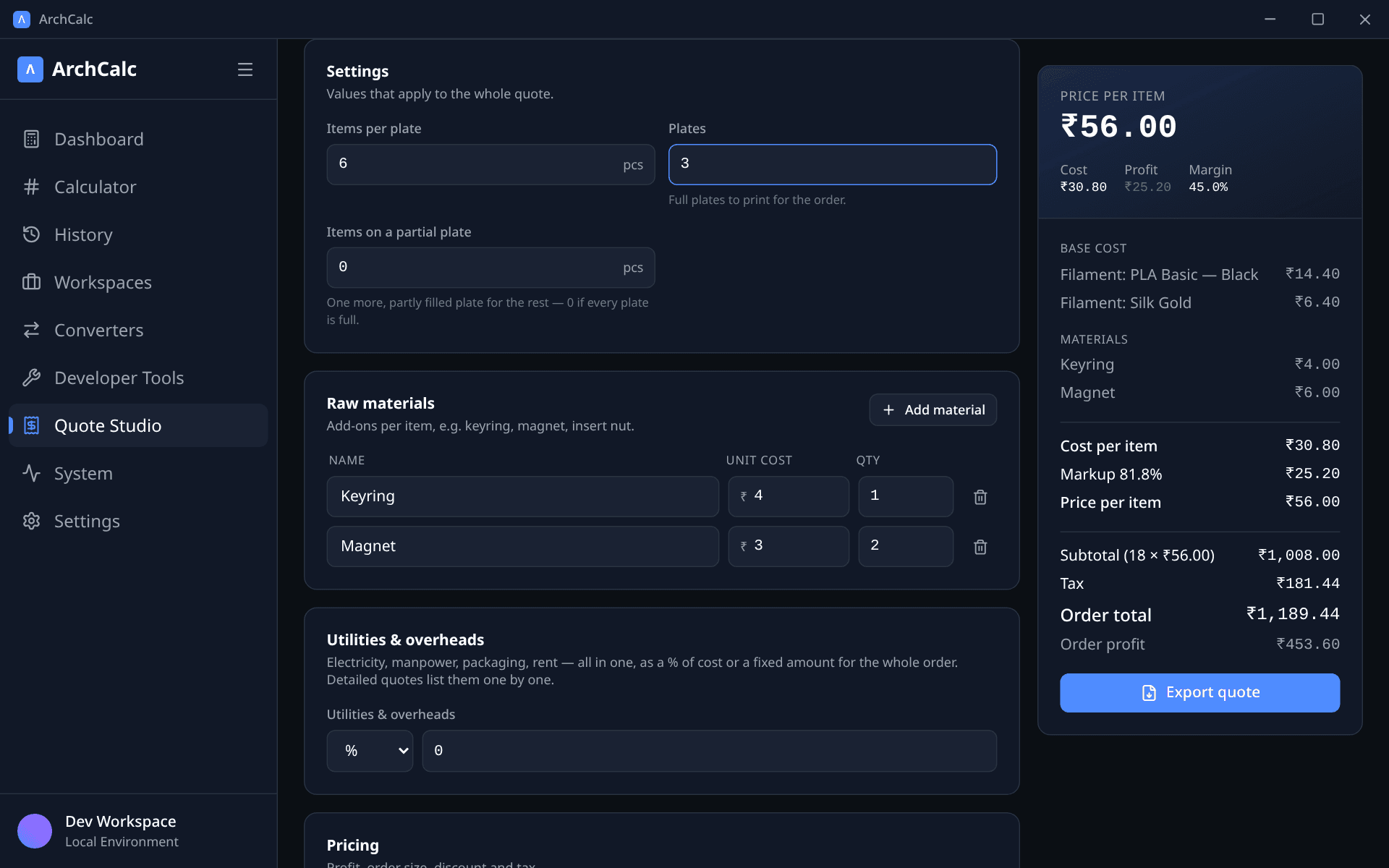
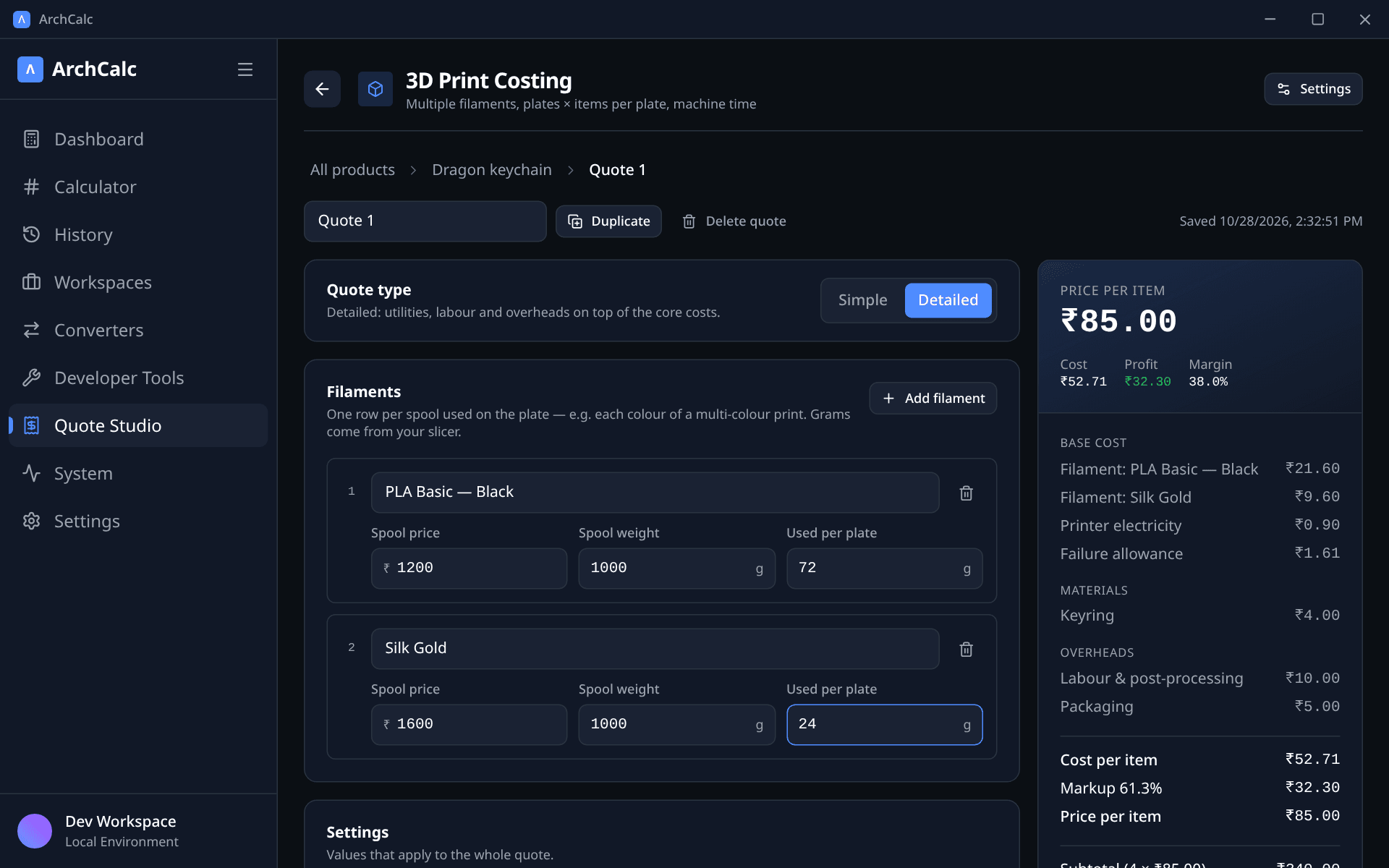
Quotes saved before rows existed are upgraded automatically — a single-spool 3D print quote becomes a one-row Filaments list with the same price.
Shared sections
Raw materials
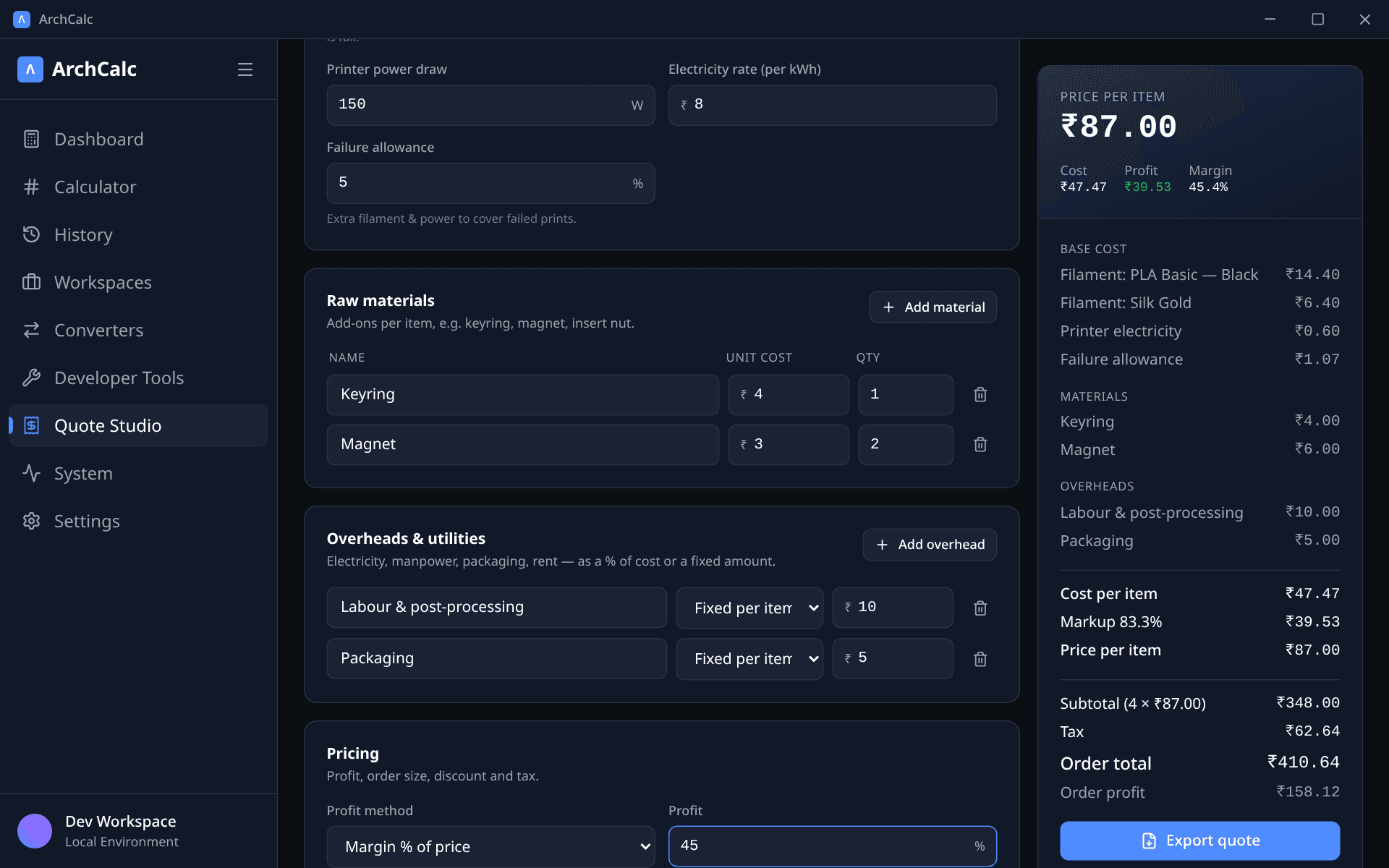
Add as many rows as you need — name, unit cost and quantity per item. For example, a keychain might need one keyring at ₹4 and one jump ring at ₹1.
Overheads & utilities
Electricity, manpower, packaging, rent and so on. Each row has a type:
- % of cost — a percentage of base cost + materials.
- Fixed per item — a flat amount added to every unit.
- Fixed per order — a flat amount spread across the order quantity (e.g. a ₹5,000 venue setup over 100 plates adds ₹50 per plate).
Profit
| Method | How the price is worked out |
|---|---|
| Markup % on cost | price = cost × (1 + markup%) |
| Margin % of price | price = cost ÷ (1 − margin%) — profit is that share of the selling price |
| Fixed profit per item | price = cost + amount |
| Multiplier (×) | price = cost × multiplier (e.g. 2.5×) |
| Target selling price | You set the price; ArchCalc shows the margin it gives |
You can also set the order quantity, a discount (% or fixed), tax / GST, and price rounding (round up to 1, 5 or 10, or a charm price ending in 9). Rounding always goes up so it never eats into your margin.
ArchCalc warns you when the price is below cost or the margin is 100% or more.
Notes & terms
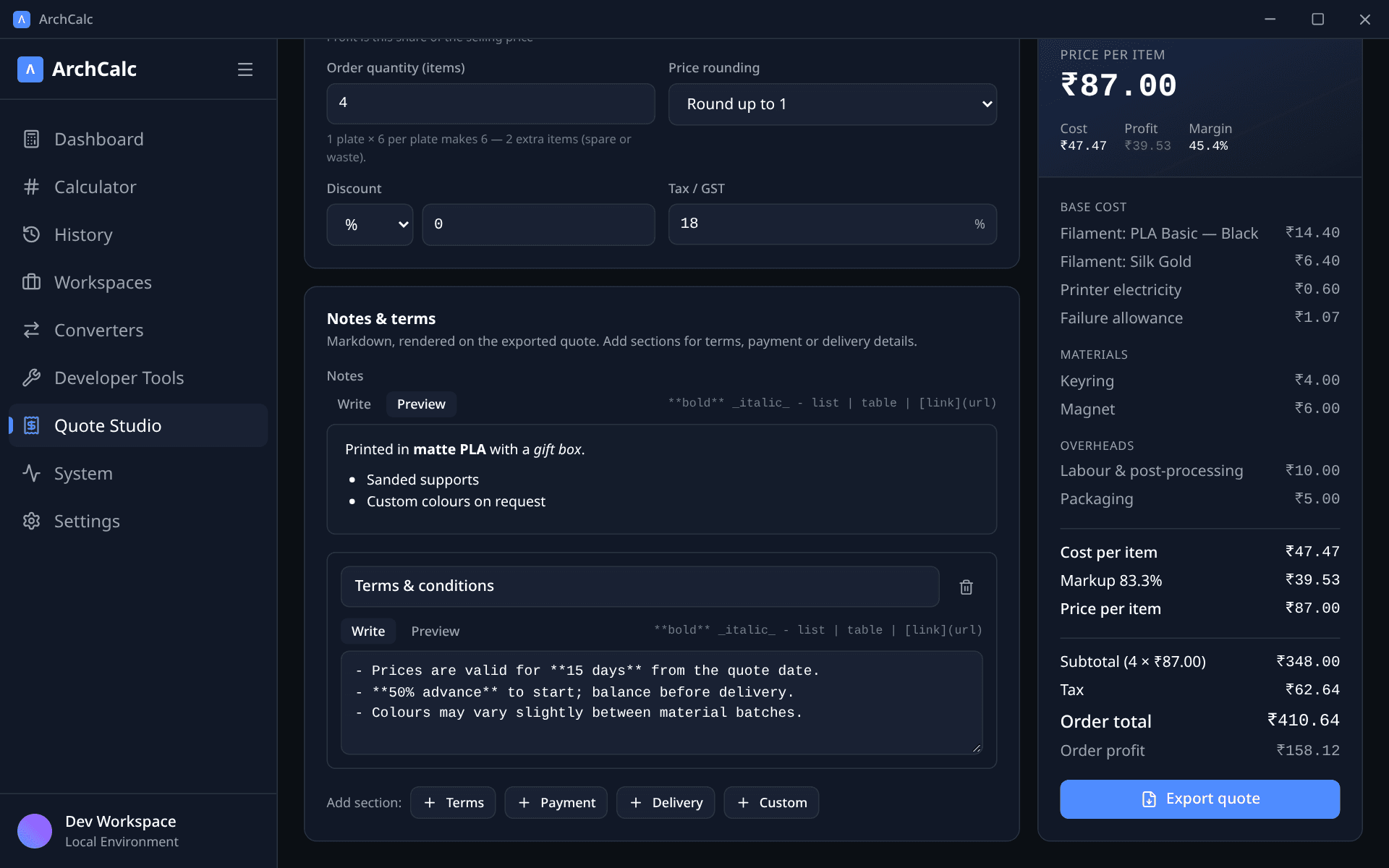
The Notes & terms card takes Markdown, so you can write bold, italic, lists, quotes, links and even tables. Use Write / Preview to check how it will look.
Need more than one block? Add extra sections with the Terms, Payment or Delivery presets (each comes with editable starter text), or Custom for anything else, such as a warranty. Every section appears on the exported quote under its own heading, in order. Duplicating a quote copies its notes and sections too.
Products and saved quotes
Quote Studio is organised as builder → products → quotes:
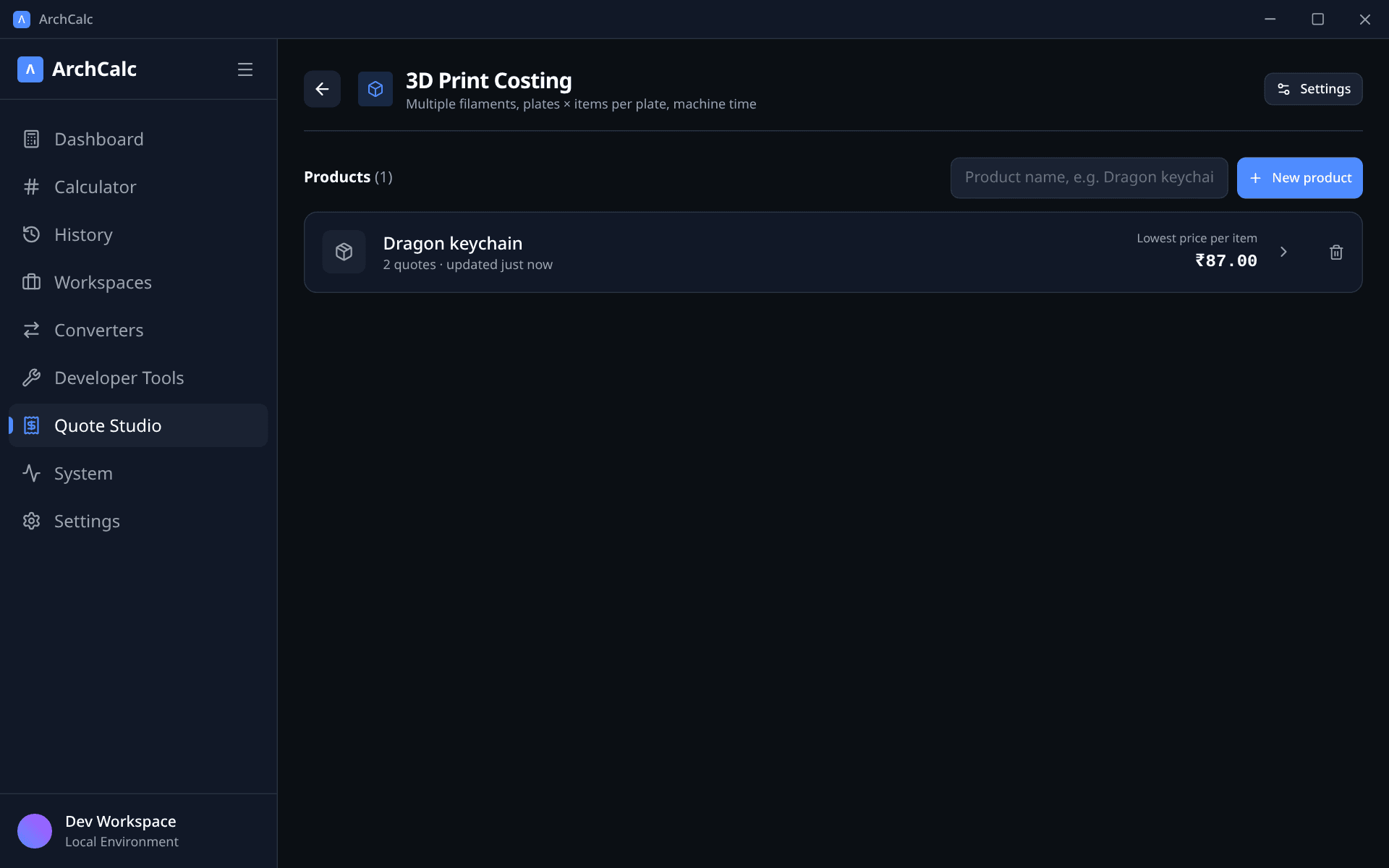
- Click a builder tile to see all its products, newest first, with how many quotes each has, its lowest price per unit and when it was last updated. Create a new product here — it opens straight into its first quote.
- Click a product to see its quotes with the price per unit, margin and order total of each. Add a new quote, duplicate or delete one, or rename the product.
- Click a quote to open the editor.
Use the breadcrumbs at the top (All products › Dragon keychain › PLA Basic) to step back up.
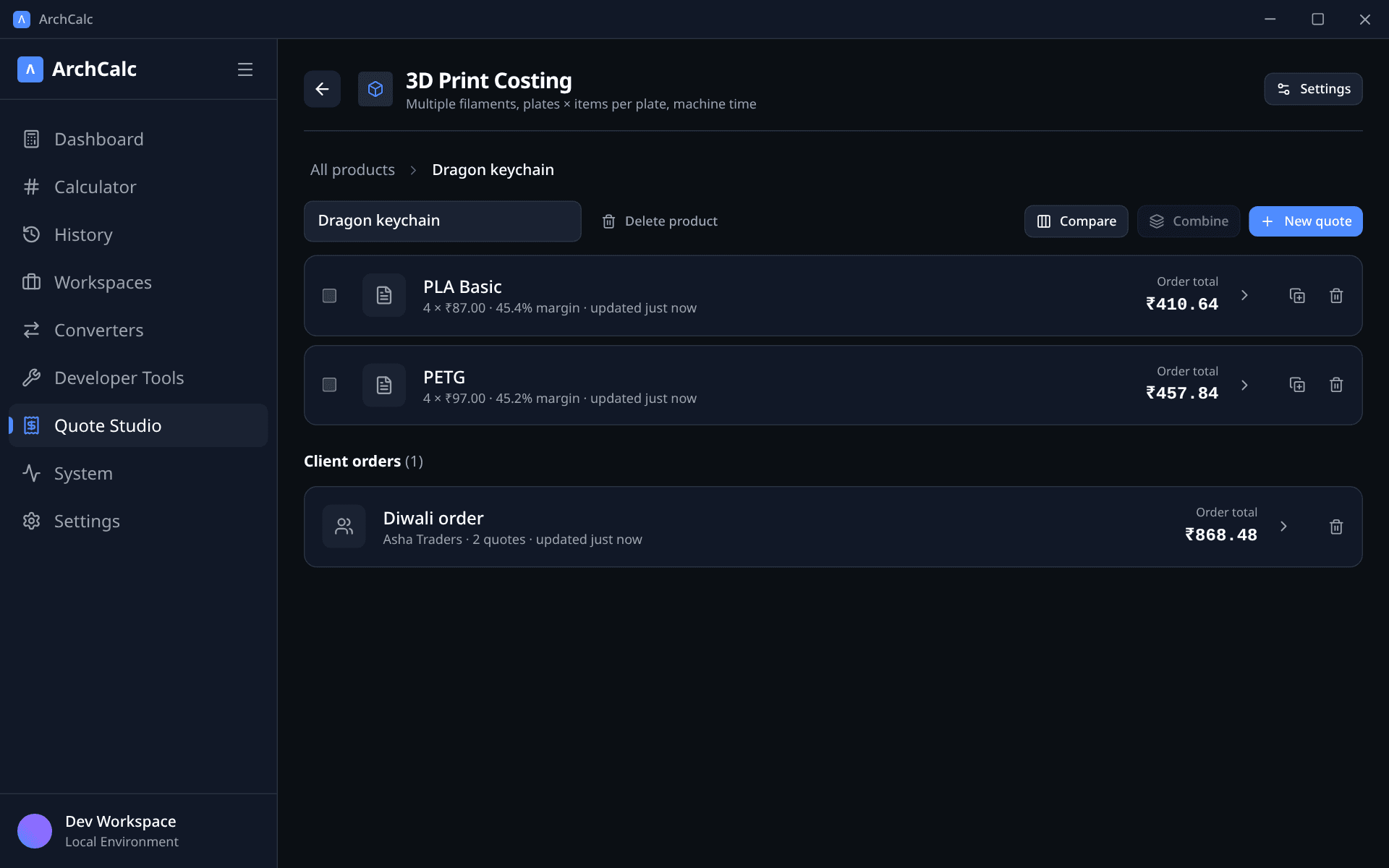
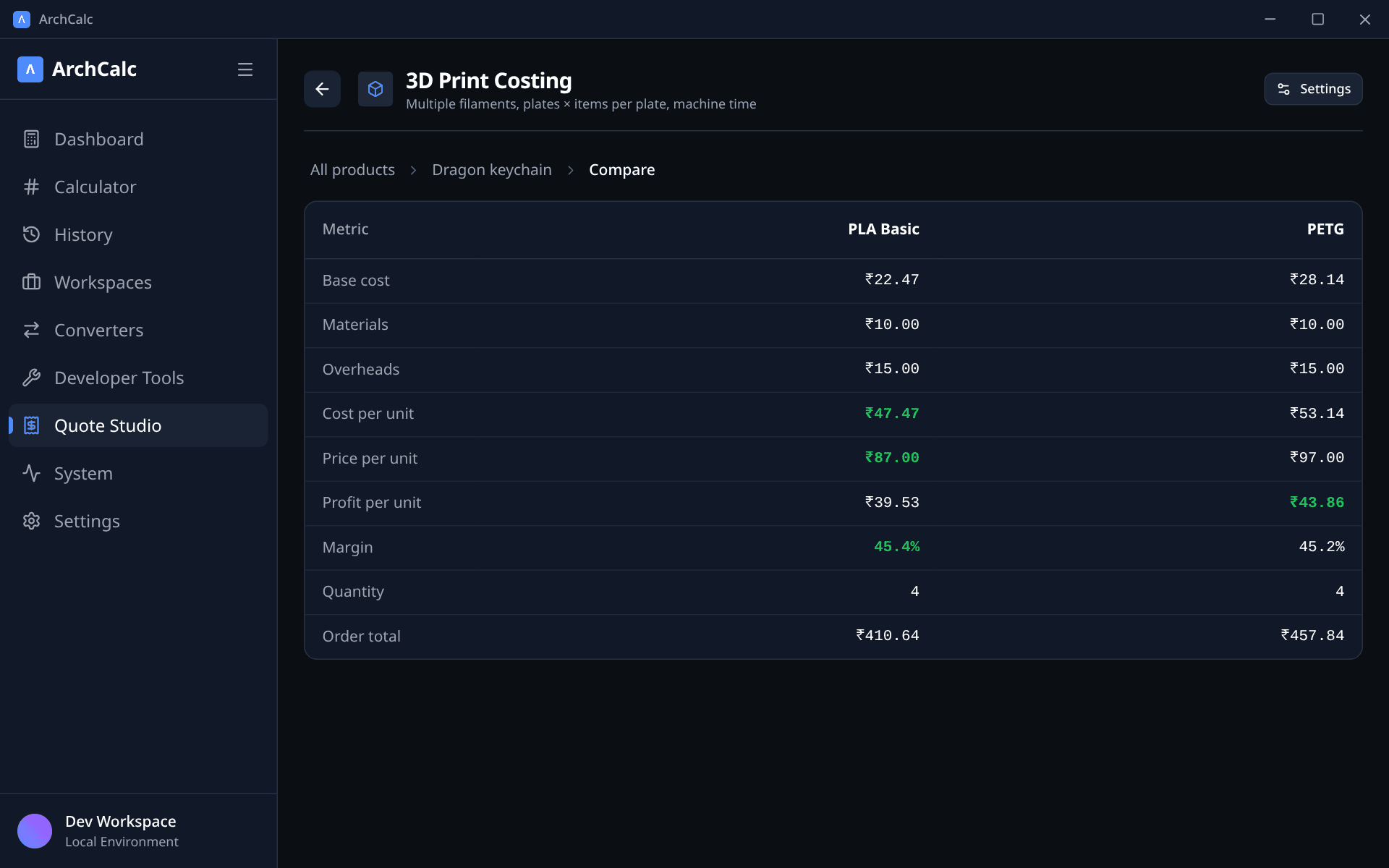
A product can hold several quotes — for example PLA Basic, PETG and Silk PLA for the same keychain. With two or more, the Compare button lines them up side by side and highlights the cheapest cost and highest margin.
Everything is saved on your device automatically and included in Settings → Data export and import.
Combining quotes for one client
A client often orders the same product made in different ways — say keychains in Black + Red, Blue + Black and Black + White, two plates each. Make one quote per colourway under the product (Duplicate is the quickest way), then combine them into a single quote for the client:
- On the product's quote list, tick the quotes to include and click Combine.
- Name the order and add the client. Untick or tick quotes here at any time.
- Choose how discount & tax work:
- One for the order — one discount (% or fixed) and one tax rate on the combined subtotal, like a normal invoice.
- Each quote's own — every quote keeps the discount and tax it already has; the order adds them up and shows a tax line per rate.
- Add notes and terms for the client (each quote's own notes aren't included), then Export quote — or Save as client order to keep it.
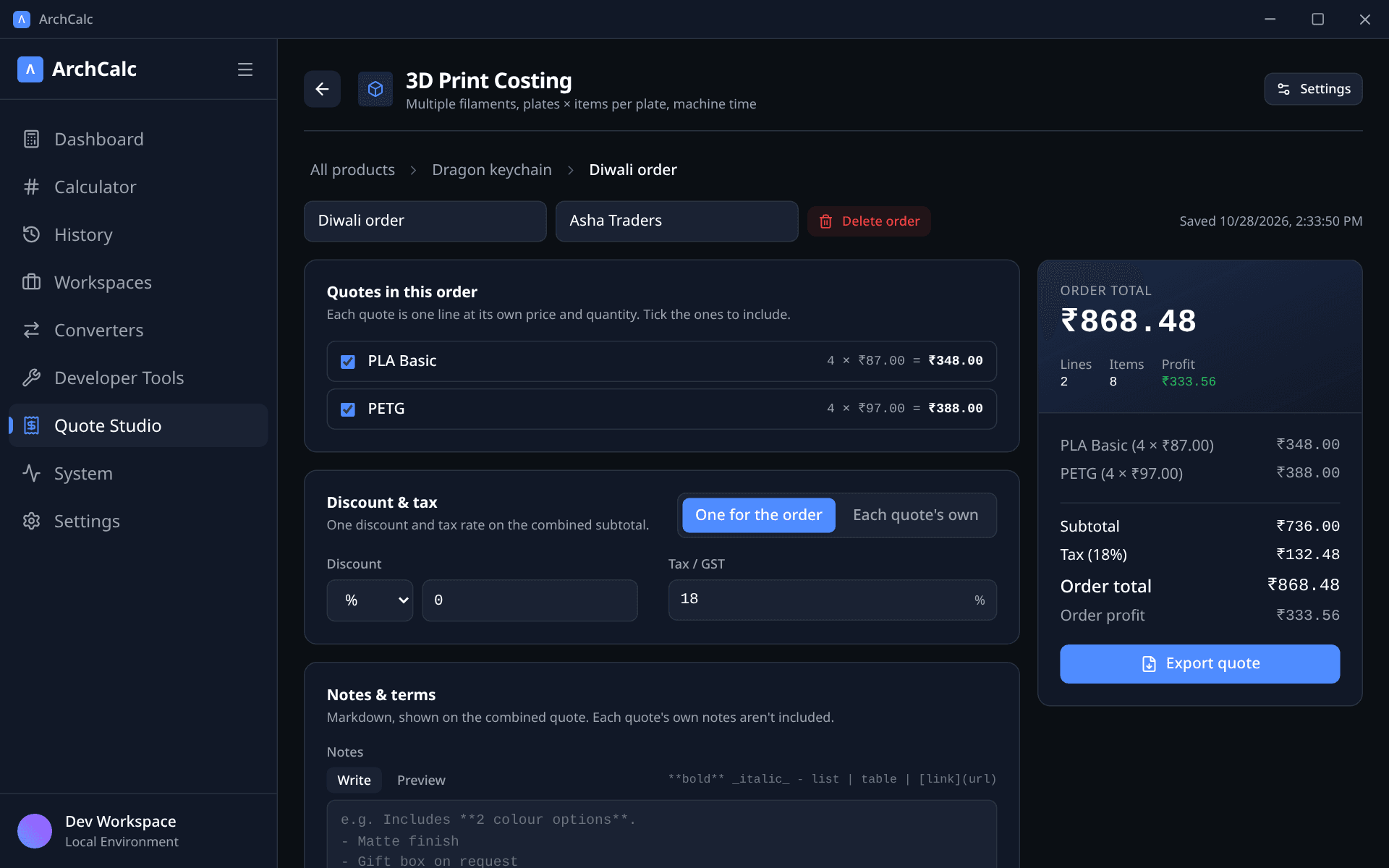
Saved orders are listed under Client orders on the product page. Prices are read live from the quotes, so changing a quote's spool price or quantity updates every order it's in; deleting a quote removes it from its orders.
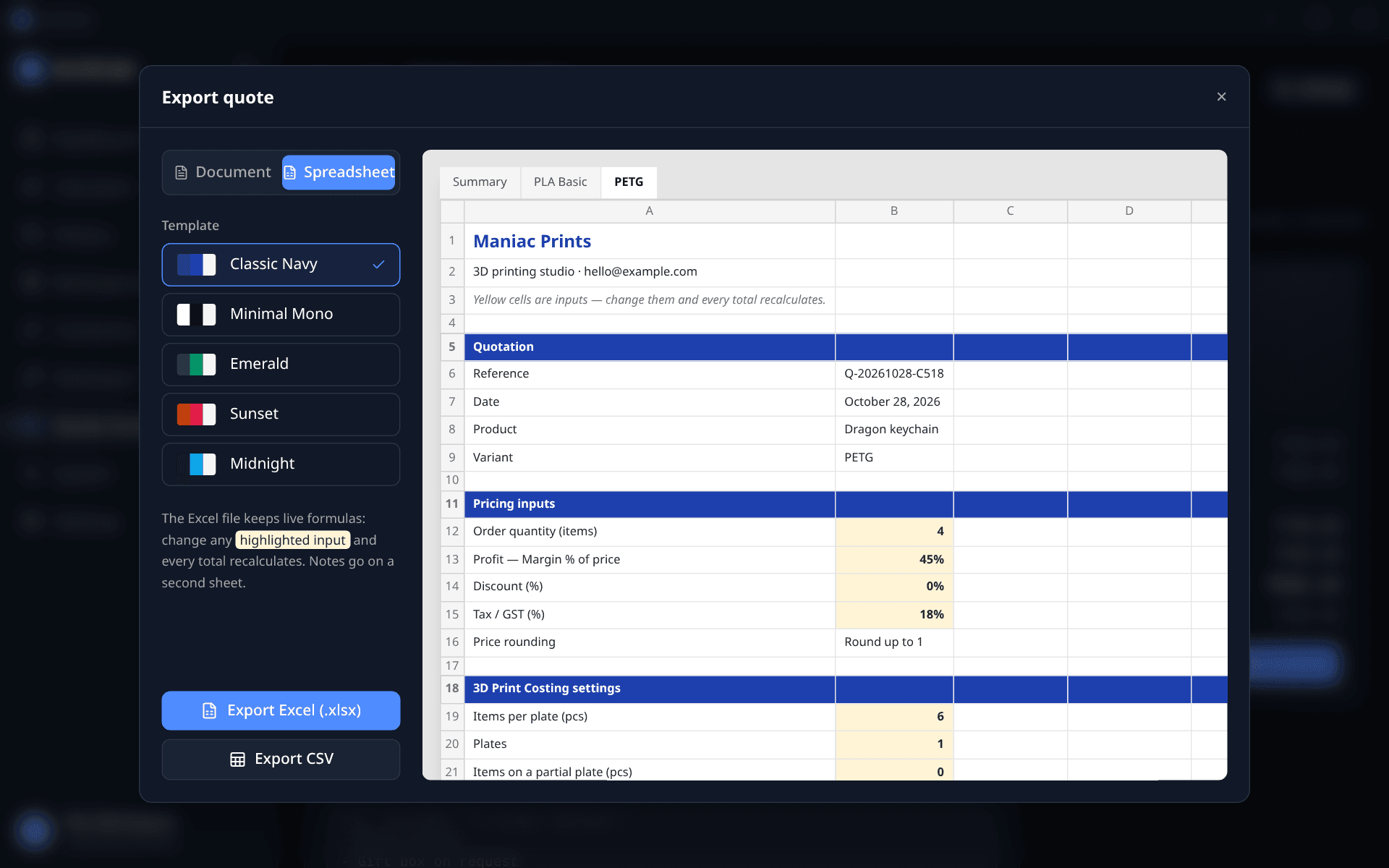
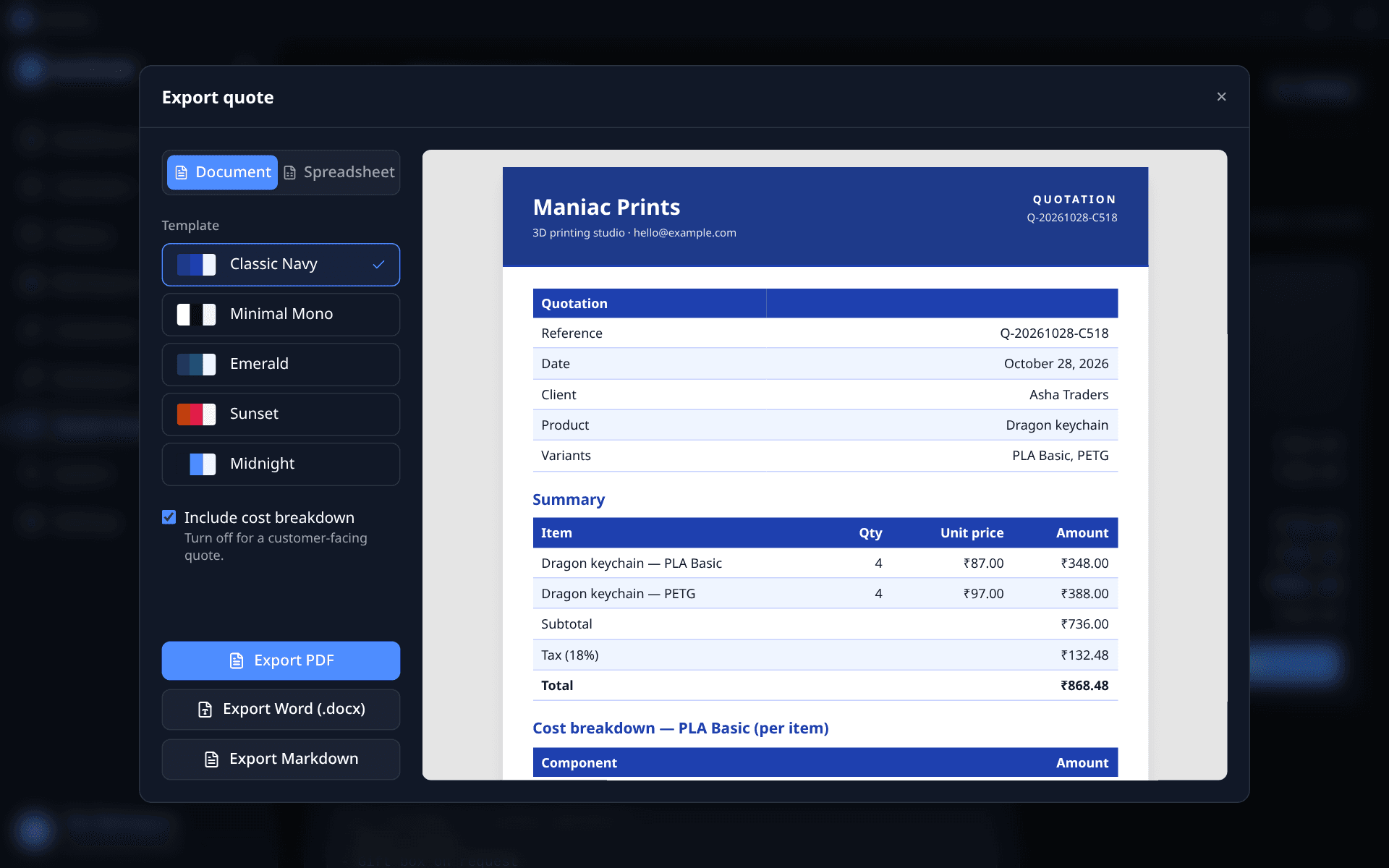
The export has one line per quote (its quantity × price per unit) and one set of totals. With Include cost breakdown on, each quote gets its own breakdown section. The Excel export has a Summary sheet plus one live sheet per quote with that quote's full breakdown — filaments, materials, price per item. Change a quote's inputs on its sheet and the summary's lines and totals recalculate. In the export window, use the sheet tabs under the preview to look at each one. CSV has the summary followed by each quote's sheet.
Exporting
Click Export quote to open the export window, then use the Document / Spreadsheet toggle at the top. ArchCalc remembers your choice.
Document: PDF, Word or Markdown
- Pick a template — Classic Navy, Minimal Mono, Emerald, Sunset or Midnight. The preview updates instantly.
- Choose whether to include the cost breakdown. Turn it off for a customer-facing quote that shows only the price, discount, tax, total and your notes.
- Export as PDF, Word (.docx) or Markdown, and choose where to save it.
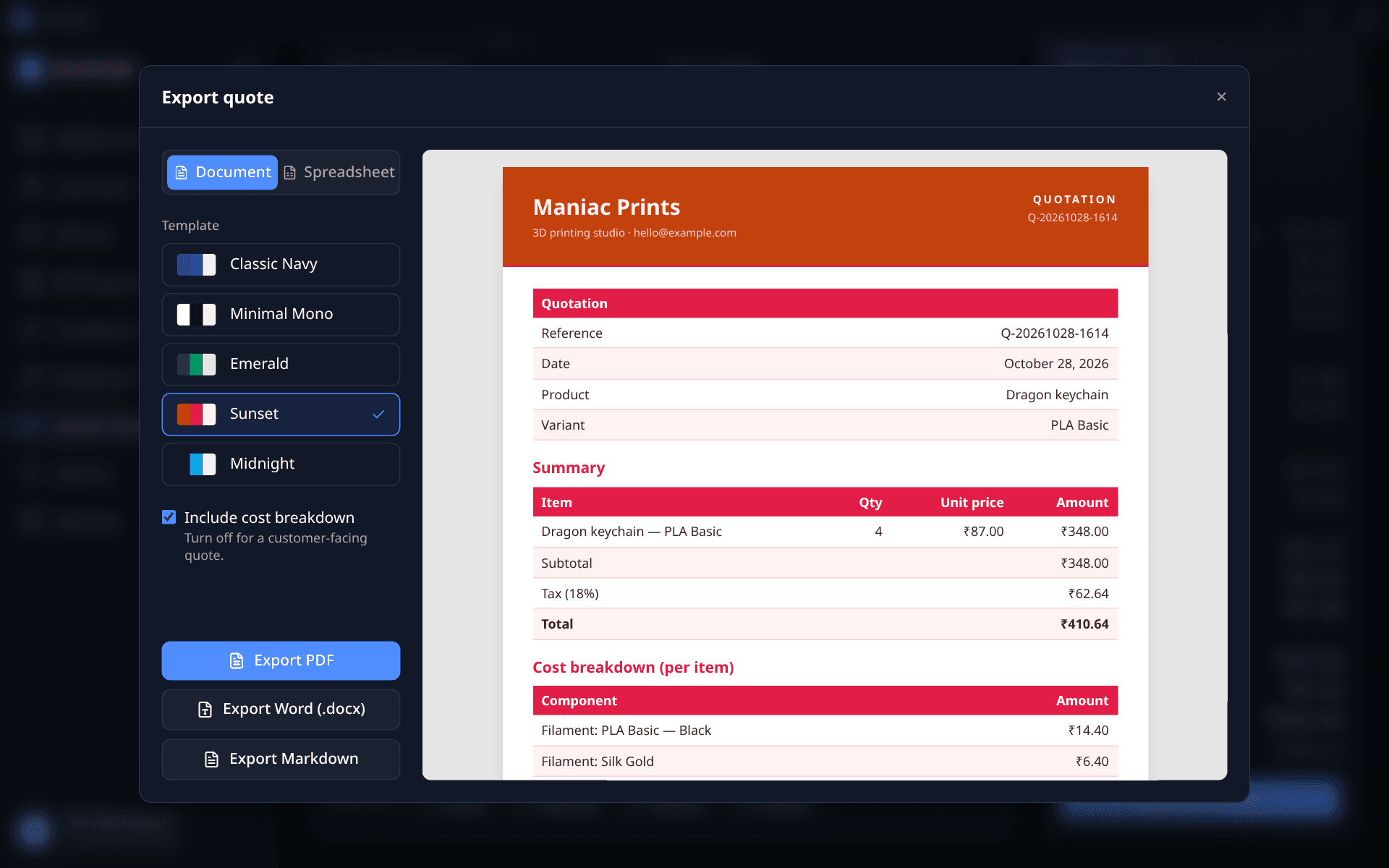
The quote is first written as Markdown, then rendered to a styled PDF, so all three formats contain the same content — including your notes and extra sections, fully formatted.
Spreadsheet: Excel or CSV
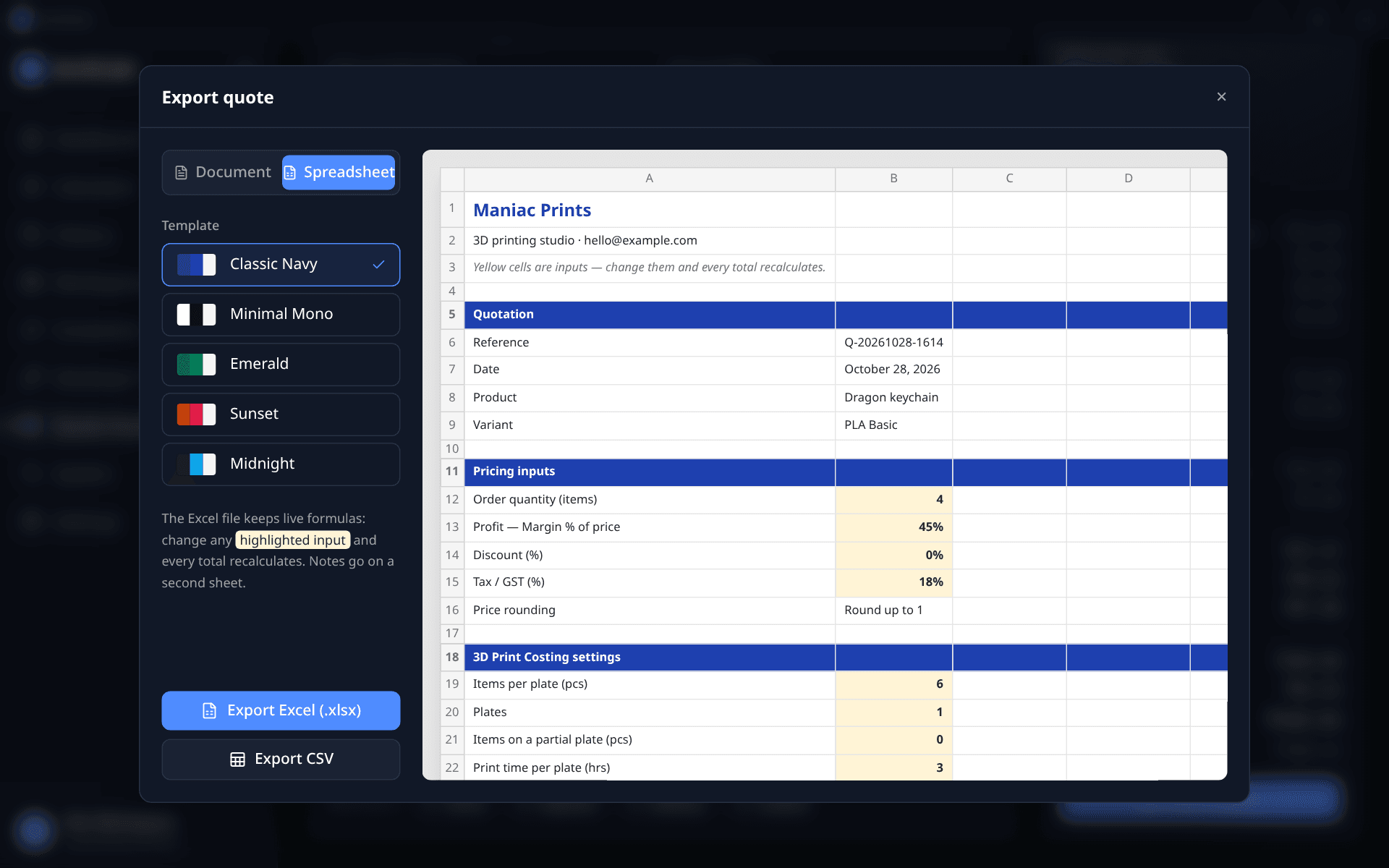
The Excel (.xlsx) export is a live costing sheet in your template's colours:
- Highlighted cells are inputs — order quantity, profit, discount, tax, every builder setting, every row of each list (each spool, fabric or surface gets its own row), material quantities and costs, and overhead values.
- Everything else is a formula. Change an input in Excel, Google Sheets, Numbers or LibreOffice and the base cost, materials, overheads, price, margin, tax and order total all recalculate, using the same maths as the app.
- Notes and extra sections go on a second Notes sheet.
CSV contains the same rows as plain values, for importing into other tools.
Quote settings
Use the Quote settings button to set your business name and contact line (shown in the header of every export), your currency, the default template, and a default tax rate for new quotes.